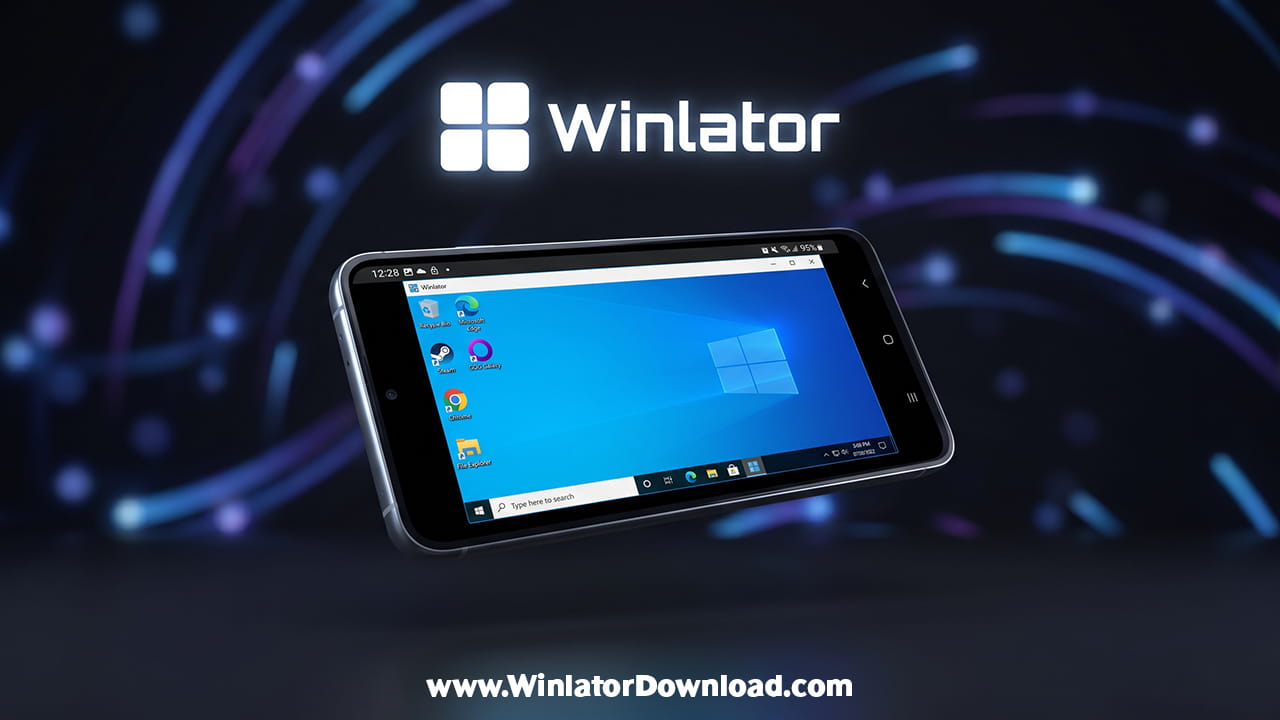
Mobile devices have become very powerful in recent years. Because of this, many people now want to run desktop apps on their phones. Winlator makes this possible in a simple way. It helps Android users run Windows apps and games without needing a PC.
In the past, this idea felt impossible. However, things have changed fast. Now, tools like Winlator bring desktop power into mobile hands. As a result, users can enjoy both portability and performance at the same time.
What is Winlator?
Winlator is an open-source Android app. It creates a bridge between Windows apps and the Android system. Instead of using the internet, it runs everything locally on the device. This means no need for cloud servers or fast internet.
Because of this local setup, Winlator gives more control to users. It also reduces lag compared to cloud-based tools. In simple terms, Winlator acts like a translator between two very different systems.
How Winlator Works
Winlator uses a mix of powerful tools to do its job. These tools work together to make Windows apps run smoothly on Android devices.
The Role of Wine
Wine helps translate Windows system calls into something Android understands. It does not copy Windows. Instead, it converts commands in real time. Because of this, apps behave like they run on a real PC.
The Role of Box64 and Box86
Phones use ARM processors, while Windows apps use x86 processors. This difference creates a problem. Box64 and Box86 solve it by translating CPU instructions.
As a result, Winlator can run apps made for completely different hardware. This process may sound complex, but it works smoothly in the background.
Key Features of Winlator v11.0
The latest version of Winlator brings better performance and stability. Many updates focus on graphics and hardware use.
Better Graphics with Vulkan
Winlator now supports advanced graphics tools like Mesa drivers. These include Turnip and Zink drivers. They improve how games look and run.
Because of this, many modern games run better than before. Frame rates feel smoother, and visual glitches are reduced.
Support for More Devices
Earlier, some devices had problems running Winlator. Now, support has improved for MediaTek and Exynos chips. This means more users can enjoy the app.
Also, the addition of new OpenGL tools helps improve compatibility. So, more games and apps can run without errors.
How To Use Winlator
Setting up Winlator is simple if the steps are followed carefully. The process does not need advanced skills. Learn how to install and how to use Winlator.
Step 1: Download and Install
First, download the Winlator APK from its official source. Then enable “Install from Unknown Sources” in Android settings. After that, install the app like any normal file.
Step 2: First Launch Setup
When Winlator opens for the first time, it prepares its files. These files include a virtual Windows environment. This step may take a few minutes.
Step 3: Create a Container
Next, go to the Containers section. Here, users can set resolution, graphics driver, and memory size. This step is very important for performance.
Step 4: Set Controls
Then, configure input controls. Users can map screen buttons to keyboard or mouse actions. This helps when running games.
Step 5: Run Applications
Finally, start the container and open the desktop view. From there, users can install and run Windows apps using .exe files.
Because of this step-by-step process, Winlator feels easy to use even for beginners.
Performance Tips for Winlator
Performance depends on the phone’s hardware. Some devices run Winlator better than others.
Snapdragon Devices
Snapdragon chips give the best results. They work well with Turnip drivers. Because of this, games run smoother and faster.
Many heavy games can run without major issues. However, settings may still need adjustment for best results.
Mali Devices
Mali GPUs are harder to optimize. Still, Winlator has improved support for them. Users can try different drivers like VirGL or Zink.
Although performance may vary, many apps still run fine. Testing different settings often helps.
CPU Core Adjustment
Another useful trick involves CPU settings. Users can limit tasks to high-performance cores. This reduces lag and improves stability.
Because of this, gameplay feels smoother in demanding apps.
Winlator vs Other Tools
Many tools try to do the same job. However, Winlator remains a popular choice.
Easy Interface
Unlike others, Winlator has a simple graphical interface. Users do not need to type commands. Everything works through menus and buttons.
Because of this, beginners can use it without confusion.
Flexible Setup
Winlator allows multiple containers. Each container can have different settings. This helps when switching between apps and games.
Other tools may not offer this flexibility. So, Winlator feels more user-friendly.
Why Winlator is Important
Winlator shows how far mobile technology has come. Phones can now handle tasks once limited to PCs.
Because of this, users gain more freedom. They can work, play, and test software anywhere. Also, old Windows apps can still be used on modern devices.
In addition, developers can experiment with cross-platform tools. This helps improve software compatibility.
Final Thoughts on Winlator
Winlator continues to improve with each update. It brings desktop-level features to mobile devices in a practical way. While it may not replace a full PC, it offers a strong alternative for many tasks.
Because of its simple setup and powerful tools, Winlator suits both beginners and advanced users. With the right settings, it can turn a smartphone into a portable workstation.
As mobile hardware keeps improving, Winlator will likely become even better. Users who explore its features can unlock new possibilities on their Android devices.